EVE Online Stream in a Can
Answer questions with Claude, one step at a time, and come out with a complete, mostly automatic interview show: a website with a schedule and booking page, themed stream overlays, matching thumbnails and banners, and YouTube uploads that fill themselves in. Built for people with low to medium tech skills.
What you need: a Claude Pro account, plus five accounts the page walks you through: Discord, a rented server, a website address, Twitch and YouTube.
Start with Steps 1 and 2 on this page ↓Where it stands: the plan and the setup interview are designed and checked. The tools themselves are being converted from a setup that already runs a weekly interview show. The plugin isn't installable yet, but Steps 1 and 2 below already work.
What you end up with
Ten tools, designed from your own ideas rather than a template, all reading from one place: your Discord events. Edit an event and the website, overlays and thumbnail follow.
- Phase 3Brand kit and bannersColors, fonts and logo from your own description, plus YouTube and Twitch banners that match
- Phase 3Your own thumbnail designDesigned from your idea, not a template, then drawn automatically for every episode
- Phase 5Overlay KitStarting Soon, interview layouts, Be Right Back and ending screens, designed to match, for OBS or Streamlabs
- Phase 5Guest Avatar BuilderA framed picture and name for guests without a camera
- Phase 6Website and calendarYour schedule, episodes and community, updated from Discord
- Phase 6Book an AppearanceGuests request a slot; nothing is booked until you say yes
- Phase 6Discord Event BuilderFill in the blanks to write events every other tool can read
- Phase 6YouTube AutopilotNew uploads get their title, description, tags and thumbnail set for you
- Phase 6Discord announcementsPosts when you go live and when a new episode is up
- Phase 7Show RunbookYour one-page guide to show week, with links to every tool
Meet Pixel Pals
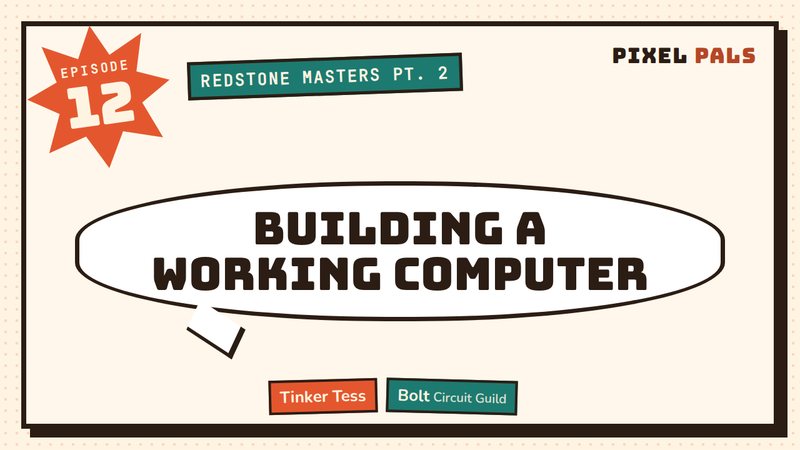
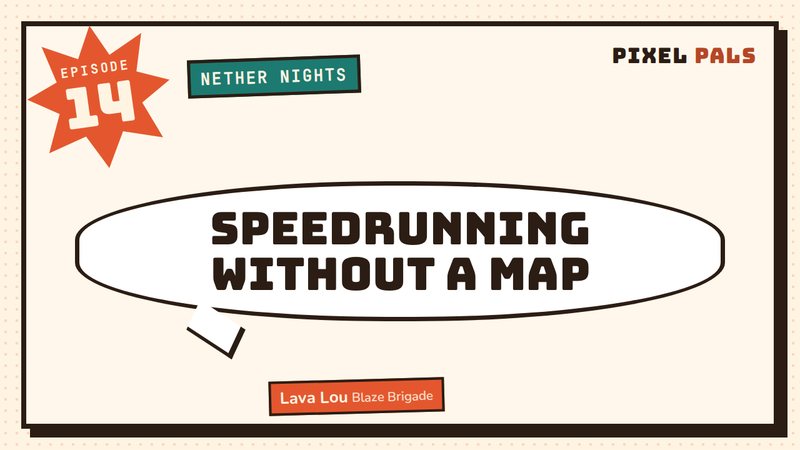
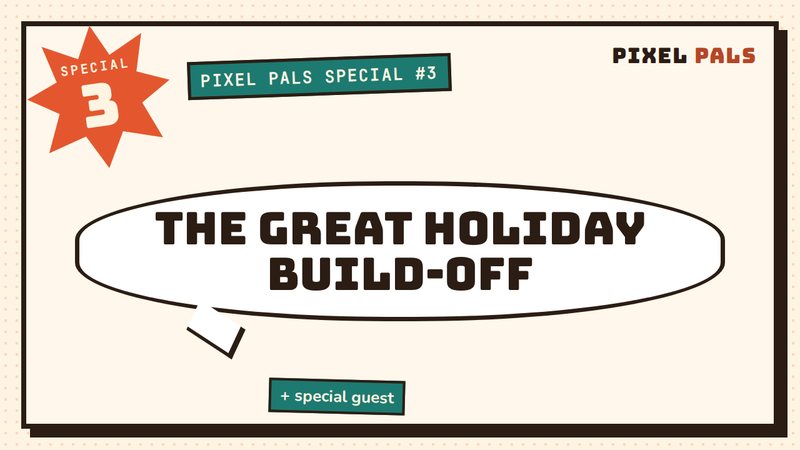
Pixel Pals is a pretend Minecraft show we invented to test the kit. Its host asked for a "cozy retro arcade, warm cream with tomato red and teal" look, and Claude came back with comic-book thumbnails. Your show gets its own design from your own idea. There's no template you're stuck with.
Start here
Steps 1 and 2 take about 10 minutes, and you don't need a Claude account yet. Your answers stay in this browser until you save them.
Claude runs every phase after this one, and setup takes a few sessions. Claude Pro is $20 a month, or $17 a month if you pay for a year. You can fill in Steps 1 and 2 first and sign up any time before Step 4.
Your five accounts
Before we design anything, let's check you have the five things a show needs: a Discord server, a small rented server (a VPS), a website address, a Twitch channel and a YouTube channel. For each one, tell me: I have it, I need it, or help me set it up. Nothing gets bought or created without you saying so.
Please never put your EVE, Twitch, Google, or Hosting password into this form or any Claude chat conversation
Please never put your EVE, Twitch, Google, or Hosting password into this form or any Claude chat conversation
Your show
Now the fun part: what's your show? Name, who's hosting, what it's about, and what your community calls itself. You can change any of this later. Only the show name and your name are required.
A preview of how your name, tagline, name tag and hashtags come across. Change anything that doesn't feel right.
Save your starter file
This small file holds your answers. Claude reads it so it doesn't have to ask you these questions again.
See what's in the file
Bring it to Claude
From here, Claude takes you through Phases 3 to 7.
- Sign up for Claude Pro Skip if you have it
$20 a month, or $17 a month if you pay for a year. Setup takes a few sessions, and Pro gives you enough room to finish. Sign up at claude.ai, then choose the Pro plan.
See the plans ↗How to sign up for Pro ↗ - Make a Project named after your show
A Project keeps everything for your show in one place, so you can stop and pick up again in a new chat. Name it something like "My Show Setup".
How to make a Project ↗ - Add the EVE Online Stream in a Can pluginNot available yet
Once it's published, the install link goes here.
- Put your starter file in your Project
This way, every chat in the Project can read it, so you only do this once.
- Open your Project. On the right side of the Project page you'll see its files (called Project knowledge).
- Press the + button there and upload your starter file (it ends in
-starter.json, usually in your Downloads folder).
Or attach it to a chat instead: press the + in the lower left of the message box, choose Add files or photos and pick the file, or drag the file into the chat.
Used Copy instead of Save? Paste it straight into the message box.
Adding files to a Project ↗Uploading files to a chat ↗ - Start a chat in your Project and say the magic words
Claude reads your starter file, repeats your answers back in a sentence or two, asks about anything missing, and starts Phase 3.
Set up my showPlease never put your EVE, Twitch, Google, or Hosting password into this form or any Claude chat conversation
The seven phases
Each phase only uses what earlier phases made, and ends with a check you can see for yourself. Open a phase to see the exact questions and steps.
-
Your five accounts
On this pageYou do this one above, before you need Claude. Go to it ↑
-
Your show
On this pageYou do this one above, before you need Claude. Go to it ↑
-
Look and feel
~35 min hands-onDescribe the style you want in your own words, as wild or as simple as you like. I'll design original thumbnails from your idea, not from a template, and show you them with your real show name before anything is final.
You come away with- Your brand kit: colors, fonts, logo and background from your own description
- Your own thumbnail design, made for your show and tested so every episode fits
- Channel banners in your style: YouTube banner, Twitch profile banner and Twitch offline screen
Questions Claude asks 5
- Describe the look you want, in a sentence or two. Mood, era, colors you love or hate. For example: "retro arcade, neon pink and teal" or "cozy, warm, hand-drawn".
- Should one word of your show name stand out in a different color? Which one? Optional.
- Do you have a logo? Attach it (ideally a PNG with a see-through background). No logo? I'll make a text logo from your show name.
- Do you have a background image for thumbnails? Attach one, or I'll make one that matches your colors.
- Want a second line at the bottom of thumbnails, like a slogan or your guest goal? Optional.
Guided steps 4
- Share your idea
Tell me the feel you're after, anything you love (a comic, a movie poster, an old game box), and anything you don't want. Pictures you like help too.
CheckYou've described your style, in words or with a picture.
- Pick from original designs
I design 2-3 different thumbnail layouts from your idea, each shown with your show name and a sample episode. Pick one, mix parts of two, or send me back to the drawing board.
CheckYou've picked a design you like.
- Stress-test your design
I draw your design with six awkward test episodes (a very long headline, three guests, a surprise guest, accents in names) and show them on one sheet, so we can fix anything that doesn't fit before it goes live.
CheckAll six test thumbnails look right to you, and the automatic check passes.
- Upload your banners
I make your YouTube and Twitch banners to match. Upload the YouTube banner in YouTube Studio (Customization) and the Twitch banners in your Twitch channel settings. I'll show you exactly where.
CheckBoth channels show the new banners.
Done whenYou've picked your own thumbnail design, the six test thumbnails look right, and your channel banners are up.
-
Schedule and guest booking
~5 min hands-onWhen do you stream, and do you want guests to be able to request a slot? Your schedule will live in Discord events, so updating the website is just editing an event.
You come away with- Schedule rules: what counts as a show, open booking slots, and your time zone
- A preview of your booking calendar, so you can check the open slots before anything goes live
Questions Claude asks 7
- What city or time zone are you in? (e.g. "Chicago" or "London")
- Which time should your website show by default: yours, UTC, or your game's server time? Visitors can always switch to their own time.
- If that time has a nickname your community uses (like "server time"), what is it? Optional.
- About how long is one of your shows, in hours?
- Have you already made episodes? What number is the next one? (New show: 1.) The Event Builder counts up from here, so you never have to track numbers.
- Want a "Book an Appearance" page where guests can request a slot? Requests come to a private Discord channel, and nothing is booked until you say yes.
- Which start times can guests pick on Saturdays and Sundays? For example 7 PM and 8 PM. Say none if you don't do weekends.
Guided steps 1
- Check your schedule preview
I show you a preview of your booking calendar: which days and times guests can pick, in your time zone and in a visitor's.
CheckThe open slots match when you actually want to stream.
Done whenYou've checked the booking calendar preview (or switched booking off).
-
Your stream and recording
~50 min hands-onWhich streaming app you use, which scenes you want (designed to match your thumbnails), how guests join, and how each episode gets recorded for YouTube. We'll set up your sound and do a short test.
You come away with- Overlay Kit: your chosen scenes (Starting Soon, interview layouts, Be Right Back, ending screen), ready to add to OBS or Streamlabs
- Guest Avatar Builder: drop in a guest's picture and name to get an image sized exactly for your camera slots, for guests without a webcam
- A working stream setup: connected to Twitch, clear sound, guests on screen, and recording turned on
Questions Claude asks 4
- Do you stream with OBS or Streamlabs? Not sure? Tell me what the app looks like, or say you haven't picked one and I'll recommend OBS (free).
- Which screens do you want? The usual set is: Starting Soon countdown, 2-person and 3-person interview, Be Right Back, and an ending screen. Add solo gameplay, 4-person, a special-episode screen or office hours if you need them.
- How will guests join? Most people use a Discord video call. I can also set up VDO.Ninja, a free tool that sends a guest's camera straight into your stream in better quality. Or guests can be in the room with you, or you can do solo shows.
- How do you want to get each episode onto YouTube? The easiest way: your streaming app records while you stream, and you upload that file. The other way: download the past broadcast from Twitch afterwards.
Guided steps 5
- Connect your streaming app to Twitch
In OBS or Streamlabs, sign in with your Twitch account (or paste your stream key from the Twitch dashboard).
CheckA 1-minute test stream appears on your Twitch channel.
- Set up your sound
Your microphone, game or computer sound, and your guests' voices from Discord, without echo. Wear headphones when guests are on.
CheckIn a short test recording, you and a friend both sound clear, with no echo.
- Add your scenes
Add each overlay to your streaming app as a browser source (a web page shown inside your stream). I give you each web address and the exact size.
CheckEvery scene shows up with sample names in the right place.
- Put guests on screen
Show a guest's camera inside the camera frame: a Discord video call, or a VDO.Ninja link you send them.
CheckA friend's camera appears inside the guest frame.
- Turn on recording
Set your streaming app to record while you stream, in a folder you can find, as MP4.
CheckA 1-minute recording plays back fine.
Done whenYour overlays show up in your streaming app with sample names, and you've made a test guest image.
-
Connect everything
~80 min hands-onThis is where it all gets wired together: your server gets installed, Discord, Twitch and YouTube get connected, and your website goes live. I'll give you one step at a time and check each one worked before moving on. You'll copy and paste a few things; you won't need to write any code.
You come away with- Your website and full calendar page, updated from Discord
- Book an Appearance page, with requests sent to your private Discord channel
- Discord Event Builder: a fill-in-the-blanks helper that writes event titles and descriptions in the format everything else reads
- Discord announcements when you go live and when a new episode is up
- Automatic thumbnails, drawn each week for your upcoming shows
- YouTube Autopilot: new uploads get their title, description, tags and thumbnail set for you
- Nightly backups of your server
Questions Claude asks 3
- When you upload a new episode, should I fill in the title, description, tags and thumbnail for you automatically? You just upload the video.
- Should I post in your Discord announcements channel when you go live on Twitch?
- And when a new episode is up on YouTube?
Guided steps 8
- Open a command window on your server
Your server has no screen, so you type into it through a command window (PowerShell on Windows, Terminal on Mac). If that's scary, your VPS provider's website has a 'console' button that does the same thing in your browser.
CheckYou see a line ending in # or $ from your server.
- Run the installer
Paste one line I give you. It installs everything and sets up nightly backups. Takes about 10 minutes.
CheckYour server's check page opens in your browser.
- Point your website address at your server
At the company where you bought your domain, add one record I give you (it links your address to your server). It can take up to an hour to start working.
CheckYour address opens your website with the padlock in the browser bar.
- Connect Discord
Create the read-only bot, invite it to your server, and make two private links: one for booking requests, one for announcements.
CheckThe check page shows Discord connected, with your server's name.
- Connect Twitch
Register a free developer app on dev.twitch.tv and copy its two codes.
CheckThe check page shows Twitch connected.
- Connect YouTube
Make a free Google Cloud project, turn on YouTube access, then sign in once on your own website's sign-in page.
CheckThe check page shows YouTube connected.
- Add your private keys
Paste the codes from the last three steps into your server's private settings file, using the command I give you. They never go into this chat.
CheckAll three show connected, all green.
- Write your first event
Open your Discord Event Builder, fill in your first real show, and copy it into a Discord event.
CheckThe show appears on your website within 10 minutes.
Done whenYour website loads, the health check shows Discord, Twitch and YouTube as connected, and you've written your first event with the Event Builder.
-
Test run
~37 min hands-onWe create a pretend show in Discord and watch it appear on your website, your overlays and a thumbnail. Then I make you your own step-by-step show-day guide.
You come away with- A test show that appears on your website, overlays and a thumbnail
- Your Show Runbook: one page with your week of a show, what's automatic and what's yours, a weekly checklist, and links to every tool above
Guided steps 4
- Watch the test show travel
We make a test event and watch it appear on your website, your overlays' name tags and a new thumbnail.
CheckAll three show the test show.
- Test the YouTube autopilot
Do a 2-minute test stream with recording on, then upload the file to YouTube as Unlisted with "Special #0" in the title.
CheckWithin 15 minutes, the video has its new title, description and thumbnail. Then delete it.
- Get your Show Runbook
I publish your personal show-day guide: your week of a show, what's automatic, a weekly checklist, and links to all your tools.
CheckThe runbook is saved in your Project.
- Know how to get help
Any time something looks wrong, say "check my show". I'll run the health check and explain what's wrong in plain words. Say "update my show" to get new versions without losing your settings.
CheckYou've tried "check my show" once.
Done whenThe test show appeared everywhere, the test upload got its title and thumbnail by itself, and your Show Runbook is saved.
Show week, once it's running
- AutomaticGuest requests a slotBook an Appearance page → your private Discord channel
- YouYou confirm and write the eventDiscord Event Builder fills in the title, guests, topic and next episode number
- AutomaticWebsite, calendar and overlays updateWithin minutes, from the Discord event
- AutomaticThumbnail is drawnWeekly job makes it in your style; you glance at the preview
- YouYou go liveDiscord gets a 'we're live' post; guest name tags fill themselves in
- AutomaticEpisode is recordedYour streaming app records while you stream
- YouYou upload the videoAny rough title with the episode number in it
- AutomaticYouTube is filled inTitle, description, tags and thumbnail, within 15 minutes
- AutomaticDiscord hears about it'New episode' post, guest added to your guest goal
What I'd love your take on
- Would you get stuck? Try Steps 1 and 2 as if you'd never rented a server. Where did you stop?
- Is anything missing between booking a guest and the video being on YouTube?
- Is the time and cost something you or streamers you know would sign up for?
- Which tool matters most to you, and which could wait until after launch?